
 咨询电话:
咨询电话:


产品列表PRODUCTS
产品展示 / PRODUCT SHOW
-

新标准沥青软化点测定仪
LRHD-6A型新标准沥青软化点测定仪是根据环球法测定粘稠石油沥青软化点。该仪器适用于测定道路石油沥青、聚合物改性沥青,或稀释沥青、乳化沥青残留物的软化点。是公路、桥梁建设和研究机构的优选仪器。 -
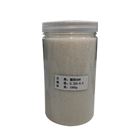
土工合成材料标准颗粒
土工合成材料标准颗粒,土工布孔径标准颗粒用于土工布孔径试验,本颗粒按照标准要求制作的球形玻璃微珠,洁净无杂质。 -
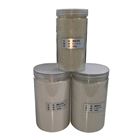
土工布有效等效孔径标准颗粒
土工布有效等效孔径标准颗粒用于土工布孔径试验,本颗粒按照标准要求制作的球形玻璃微珠,洁净无杂质。 -

29.43J重型混凝土回弹仪
HT-3000A型29.43J重型混凝土回弹仪以回弹值(弹回的距离与冲击前弹击锤与弹击杆的距离之比按百分比计算)作为混凝土抗压强度相关的指标之一,来推定混凝土的抗压强度的一种仪器。 -

改进VC法碾压混凝土数显维勃稠度仪
VBR-II型改进VC法碾压混凝土数显维勃稠度仪主要用于测试混凝土拌和物维勃稠度的测定,它以拌和物振实时间(秒)的长短来确定混凝土拌和物稠度值,适用于骨料最大粒径不大于40mm,维勃稠度在5-30s之... -
VC法混凝土维勃稠度仪
VBR-II型VC法混凝土维勃稠度仪根据中华人民共和国国家标准GB/T50080-2016设计制造,主要用于测试混凝土拌和物维勃稠度的测定,它以拌和物振实时间(秒)的长短来确定混凝土拌和物稠度值,适用... -

高低温拉力试验机
WDW-50型高低温拉力试验机适合金属、橡胶、塑料及其它材料的机械性能测试与研究,可广泛应用于机械、冶金、建筑、交通、航空、航天、船舶、陶瓷、汽车、医药及电子等行业。 -

混凝土气泡间距测定仪
QPJJ-2A型混凝土气泡间距测定仪采用导线法,测试硬化混凝土的气泡的各项参数。气泡间距工作性能强,软件界面友好,操作简捷,测试精度高,深受国内科研单位的欢迎。 -
混凝土气孔结构分析仪
QPJJ-2A型混凝土气孔结构分析仪采用导线法,测试硬化混凝土的气泡的各项参数。气泡间距工作性能强,软件界面友好,操作简捷,测试精度高,深受国内科研单位的欢迎。 -
气泡间距系数分析仪
QPJJ-2A型气泡间距系数分析仪采用导线法,测试硬化混凝土的气泡的各项参数。气泡间距工作性能强,软件界面友好,操作简捷,测试精度高,深受国内科研单位的欢迎。 -
硬化混凝土气孔结构分析仪
QPJJ-2A型硬化混凝土气孔结构分析仪采用导线法,测试硬化混凝土的气泡的各项参数。气泡间距工作性能强,软件界面友好,操作简捷。 -
硬化混凝土气泡间距系数分析仪
QPJJ-2A型硬化混凝土气泡间距系数分析仪采用导线法,测试硬化混凝土的气泡的各项参数。气泡间距工作性能强,软件界面友好,操作简捷,测试精度高。 -

新标准高强螺栓扭矩检测仪
GB/T1231-2024新标准高强螺栓扭矩检测仪根据《GB50205-2020钢结构工程施工质量验收规范》、GB/T1231-2024《钢结构用高强度大六角头螺栓连接副》有关要求设计制造,可对大六角... -

2024新标准高强螺栓检测仪
LS-500B型2024新标准高强螺栓检测仪根据《GB50205-2020钢结构工程施工质量验收规范》、GB/T1231-2024《钢结构用高强度大六角头螺栓连接副》有关要求设计制造,可对大六角头高强... -
钢结构高强螺栓轴力扭矩系数检测仪
LS-500B型钢结构高强螺栓轴力扭矩系数检测仪根据《GB50205-2020钢结构工程施工质量验收规范》、GB/T1231-2024《钢结构用高强度大六角头螺栓连接副》有关要求设计制造,可对大六角头... -
新标准高强螺栓扭矩值检测仪
LS-500B型新标准高强螺栓扭矩值检测仪根据《GB50205-2020钢结构工程施工质量验收规范》、GB/T1231-2024《钢结构用高强度大六角头螺栓连接副》有关要求设计制造,可对大六角头高强螺... -
高强螺栓轴力扭矩复合检测仪
GB/T1231-2024高强螺栓轴力扭矩复合检测仪根据《GB50205-2020钢结构工程施工质量验收规范》、GB/T1231-2024《钢结构用高强度大六角头螺栓连接副》有关要求设计制造,可对大六... -
GB/T1231-2024新标准高强螺栓检测仪
LS-500B型GB/T1231-2024新标准高强螺栓检测仪根据《GB50205-2020钢结构工程施工质量验收规范》、GB/T1231-2024《钢结构用高强度大六角头螺栓连接副》有关要求设计制造... -

漆膜弹性冲击试验器
TCJ型漆膜弹性冲击试验器是用来测试在标准条件下,色漆、清漆或相关产品的干膜经受重锤冲击而发生变形时,其抵抗开裂或从底材剥离的性能。 -

重型冲击试验机
ZCJ型重型冲击试验机对于抗冲击试验有一个较宽的范围,适用于多种类的层,如涂料。 -

水泥游离氧化钙快速测定仪
CA-6A型水泥游离氧化钙快速测定仪集自动和手动操作于一体的控制器,用于测定水泥中游离氧化钙的含量。 -

道钉反射器抗冲击测定仪
STT-930A型道钉反射器抗冲击测定仪主要适用于交竣工验收、施工、检测等有关部门对矩形突起路标的逆反射器抗冲击性能检测。 -

突起路标发光强度系数测试仪
KN-508型突起路标发光强度系数测试仪符合以下标准:GB/T24725-2009《突起路标》、GB/T26377-2010《逆反射测量仪》、JJG059-2004《逆反射测量仪检定规程》。 -
突起路标逆反射测量仪
KN-508型突起路标逆反射测量仪是测量突起路标的主要性能指标--发光强度系数。该仪器适用于测光实验室、检测中心和公路施工现场等;它还适用于突起路标生产厂对产品质量的检验。本仪器测量对象为矩形的突起路...
 技术文章ARTICLE
- 2025-11-23混凝土钻孔取芯机的操作方法可归纳为以下步骤
- 2025-11-21混凝土钻孔取芯机给我们带来了怎样的特点呢?
- 2025-10-24开云电竞最新链接下载其核心的产品优势具体如下
- 2025-10-22开云电竞最新链接下载是由哪几大部分组成的呢?
新闻动态NEWS CENTER
- 2025-09-18新品上市:JTG3410-2025《公路工程沥青及沥青混合料》沥青软化点测定仪
- 2025-08-28新品上市:TCLB-1型波纹管耐拉拔试验机
- 2025-08-09新品上市:HT225-CS型智能云回弹仪
- 2025-07-22新品上市:HT-3000A型重型混凝土回弹仪
资料下载DOWNLOAD

 在线客服
在线客服